# Displaying Data In Project View
One of the most powerful features of this asset is the ability to display detailed information about the files inside your Project folder.
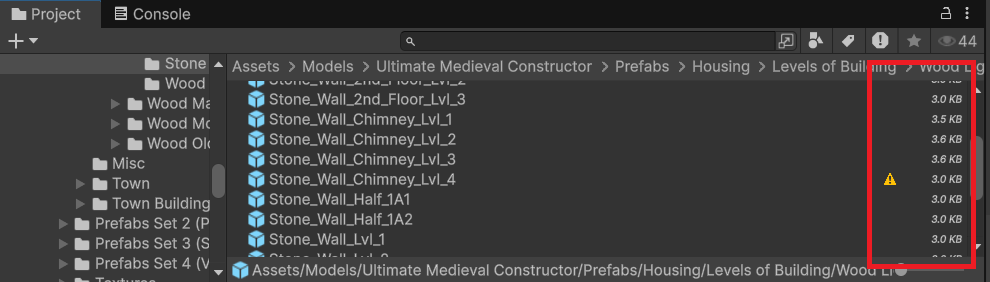
Once the tool is opened, you will notice that the Project window changes how it displays data. Additional information may appear on the right side of each file.
#### 🔔 Usage Alert
If an asset is being used in any scene or ScriptableObject, a **yellow alert** will appear next to it.
This allows you to quickly identify which files are currently in use before deleting anything.
***
#### 📁 Customizable Data Columns
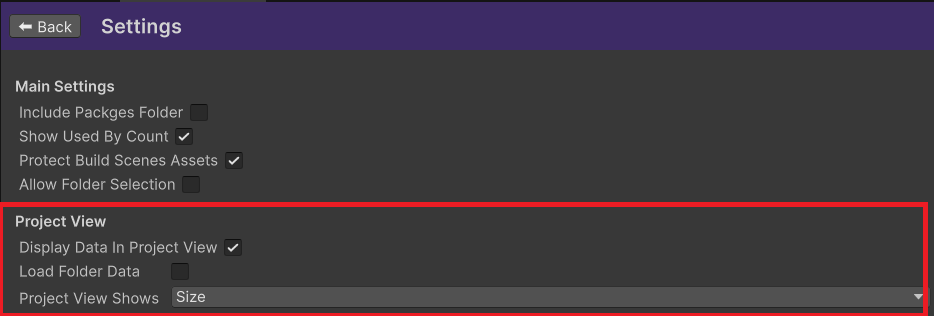
The information shown next to each asset can be customized. You can choose to display:
* File size
* Creation date
* Time since creation
* And other useful options
This helps you analyze and organize your project more efficiently.
***
#### 📦 Load Folder Data Option
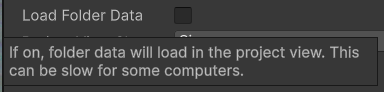
There is also an option to load data for an entire folder.
⚠ For small projects, this works very well and loads quickly.
⚠ For large projects, it is not recommended.
When enabled on large folders, the system must scan all files recursively. This process can take some time and may temporarily slow down the editor while the data is being collected.
Use this option carefully depending on the size of your project.